Data Integration
Free Facebook Ads to Google Sheets Connector by OWOX: Own Your Data, Maximize Your Insights
Running ads on Facebook is easy. Getting clear, usable reports from it? Not so much.
If you’ve ever tried to pull performance data into Google Sheets, you know the pain: manual CSV exports, expensive tools, and limited access to your own ad results.
We believe that should change.
With this free, no-code connector from OWOX, built on OWOX Data Marts (Community Apps Script Edition), you can import, refresh, and customize Facebook Ads data in Google Sheets – in minutes, not hours.
Why We Made This Free Connector
Why We Made This Free Connector
At OWOX, we’ve always believed that businesses shouldn’t have to rent their own data.
That’s why we built this connector and made it 100% free. No paid upgrades, no hidden features, and no restrictions on what you can do with your data.
Inspired by our mission to simplify data ownership, we aim to empower marketers and analysts to stop relying on black-box tools. You deserve transparency, flexibility, and control – and this connector gives you exactly that.
Whether you’re a performance marketer, a startup founder, or a data analyst tired of reinventing the wheel, this connector puts the power back in your hands.
Join the Open-Source Movement
We’re not just releasing a free connector – we’re inviting you to help shape the future of open marketing analytics tools.
At OWOX, we believe that data access and transparency should be a right, not a luxury. That’s why this connector is 100% open-source – giving you full control over how it works, what it does, and how far it can go.
If you like what we do, please ⭐ star our GitHub repo to show your support – it helps us reach more analysts and grow the number of available connectors.
Also, feel free to:
- Explore the code and customize it to fit your needs.
- Contribute to this data connectivity ecosystem: suggest new connectors, pull new connectors and / or documentation to support the wider community.
- Join our community & share your feedback.
We’ve built the core, the foundation – now it’s your turn to take it further.
Facebook Ads Connector to Google Sheets
Why Bring Facebook Ads Data into Google Sheets?
Why Bring Facebook Ads Data into Google Sheets?
If you’ve ever tried analyzing Facebook Ads performance beyond what Ads Manager offers, you already know the headaches:
❌ Rigid reports with limited customization
❌ No easy way to blend Facebook data with other sources
❌ Connectors that charge you more as your data grows
That’s where Google Sheets comes in – and why this connector changes the game.
✅ With Google Sheets, you can structure your ad data however you need.
✅ You can combine it with data from Google Analytics, CRM tools, and other platforms.
✅ You can build automated reports, dashboards, and share insights across your team – no waiting, no copy-pasting.
By connecting Facebook Ads to Google Sheets directly, you gain flexibility, control, and visibility that static dashboards or pricey platforms just can’t match.
And with the OWOX connector, you can do it all without coding – and without spending a cent.
**Check out our other free connectors:
**Already loving the freedom of custom reports? Don’t stop here. You can also connect:
Facebook Ads → BigQueryTikTok Ads → Google SheetsTwitter Ads → Google Sheets[Reddit Ads → Google Sheets](https://Reddit Ads → Google Sheets)
No cost. No coding. Just smarter, faster reporting across all your ad platforms.
Why Choose OWOX Free Connector for Facebook Ads to Google Sheets
Why Choose OWOX Free Connector for Facebook Ads to Google Sheets
There are plenty of tools out there that promise to pull Facebook Ads data into Google Sheets. Still, most of them come with friction: limited access, partial metrics, restricted refresh options, or expensive monthly fees hidden behind “no-code” labels.
The OWOX connector is different.
It’s built with marketers in mind:
- Built specifically for Facebook Ads → Google Sheets. No generic “connect anything” wrappers or third-party detours.
- Full access to Meta’s Ads API — choose any metrics, breakdowns, or dimensions you need.
- Zero vendor lock-in — your data flows directly into Google Sheets via open-source Apps Script.
- Complete transparency — no black-box connectors or unclear logic. You see and control every step.
- No rate throttling, no arbitrary row limits, no forced upgrades — just raw, structured Facebook Ads data when and where you need it.
Other tools might simplify a single request. This connector gives you full ownership of your data, reporting process, and workflow.
If your goal is real flexibility in how you analyze Facebook Ads performance inside Google Sheets, without hitting a wall or a paywall, this is the connector you’ve been waiting for.
How the Connector Works
How the Connector Works
At OWOX, we wanted to build a connector that’s powerful enough for analysts, but simple enough for marketers. So we designed it to run directly in Google Sheets using Apps Script, powered by OWOX Data Marts (Community Apps Script Edition), with no coding or third-party platforms required.
Here’s how it works under the hood:
- Open-source Google Apps Script powers the connector. You can inspect, tweak, or extend it any way you want – complete transparency, no black boxes.
- Pulls raw data from Facebook Ads API – with support for all fields and granular controls for dates, metrics, breakdowns, and filters.
- Pastes the results directly into your spreadsheet, where you can customize reporting, combine with other data, and automate visualizations.
And yes – it’s 100% free, with no hidden limits or usage caps. You own your connector. You own your data.
Whether you’re a solo marketer or part of a data team, the connector built on OWOX Data Marts (Community Apps Script Edition) helps you:
- Skip vendor lock-ins or expensive subscriptions.
- Automate your ad data flow with just a few clicks.
- Collaborate and build dashboards in the tools you already use every day.
It’s not just another reporting hack – it’s a small but powerful step toward giving your team full control over marketing performance data.
💡 Check out this video for a clear, step-by-step guide on setting up the Facebook Ads to Google Sheets connector using OWOX.
Step-by-Step: Import Facebook Ads Data to Google Sheets
Step-by-Step: Import Facebook Ads Data to Google Sheets
This is where the magic happens. In just a few minutes, you’ll have your Facebook Ads data flowing into Google Sheets – no coding, no roadblocks, just results.
Let’s walk through each step.
Step 1: Copy the Google Sheets Template ( ~1 min)
To streamline the setup process, use our pre-configured Google Sheets template – no need to build from scratch.
- Access the Template
- Open the “Facebook Marketing → Google Sheets. Template” from OWOX.
- Create a Personal Copy
- Go to File → Make a copy to save it to your Google Drive.
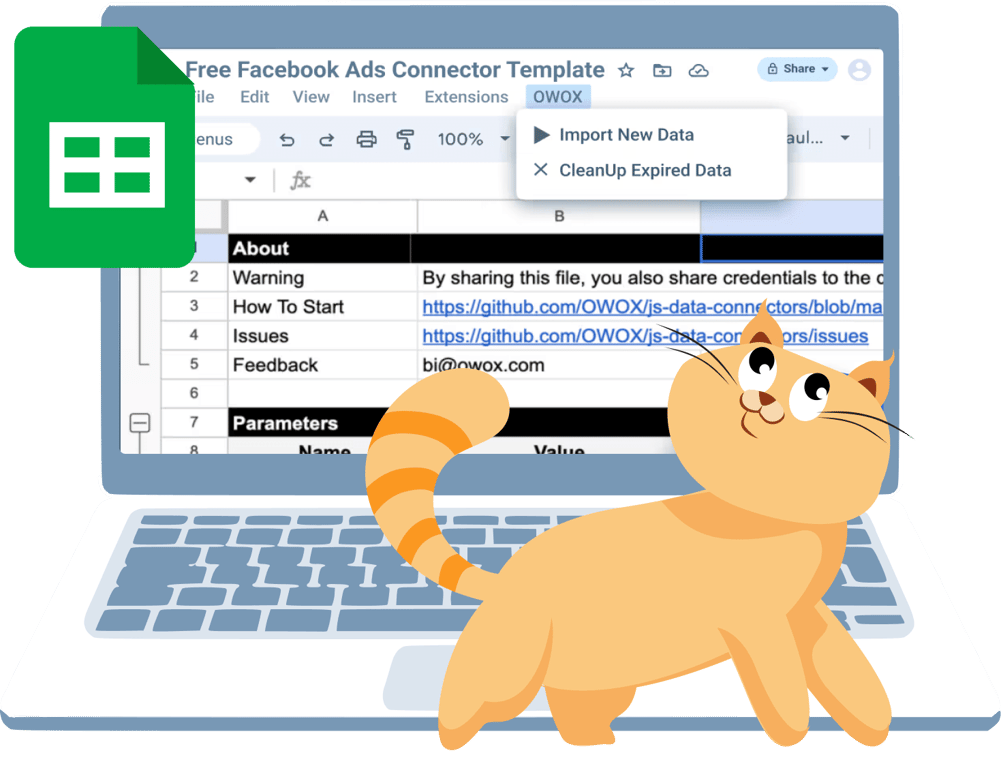 Download your FREE template today!
Step 2: Configure the Template ( ~1 min)
Set up your desired parameters for data collection in just a few clicks.
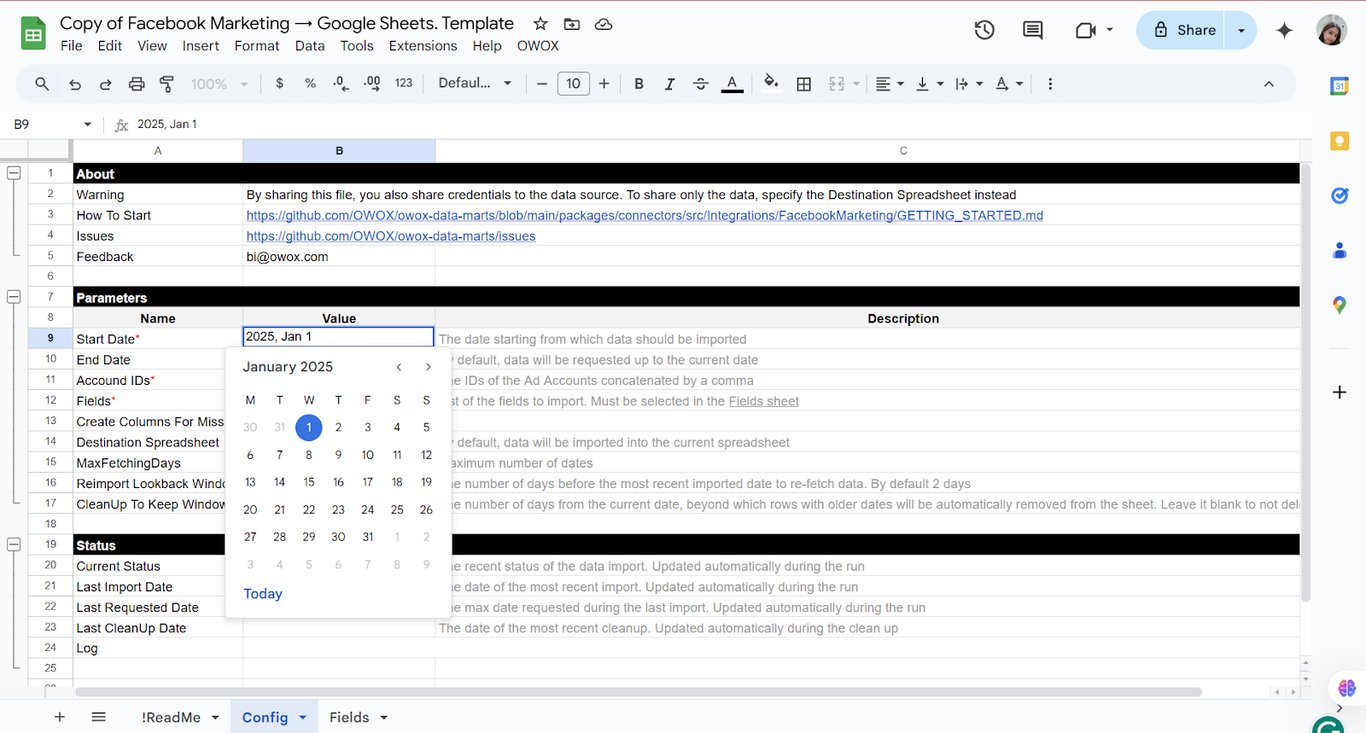
- Set the Start Date
- On the Config sheet, specify when the data import should begin.
Note: Using a long date range may cause the import to fail due to data volume limits.
- On the Config sheet, specify when the data import should begin.
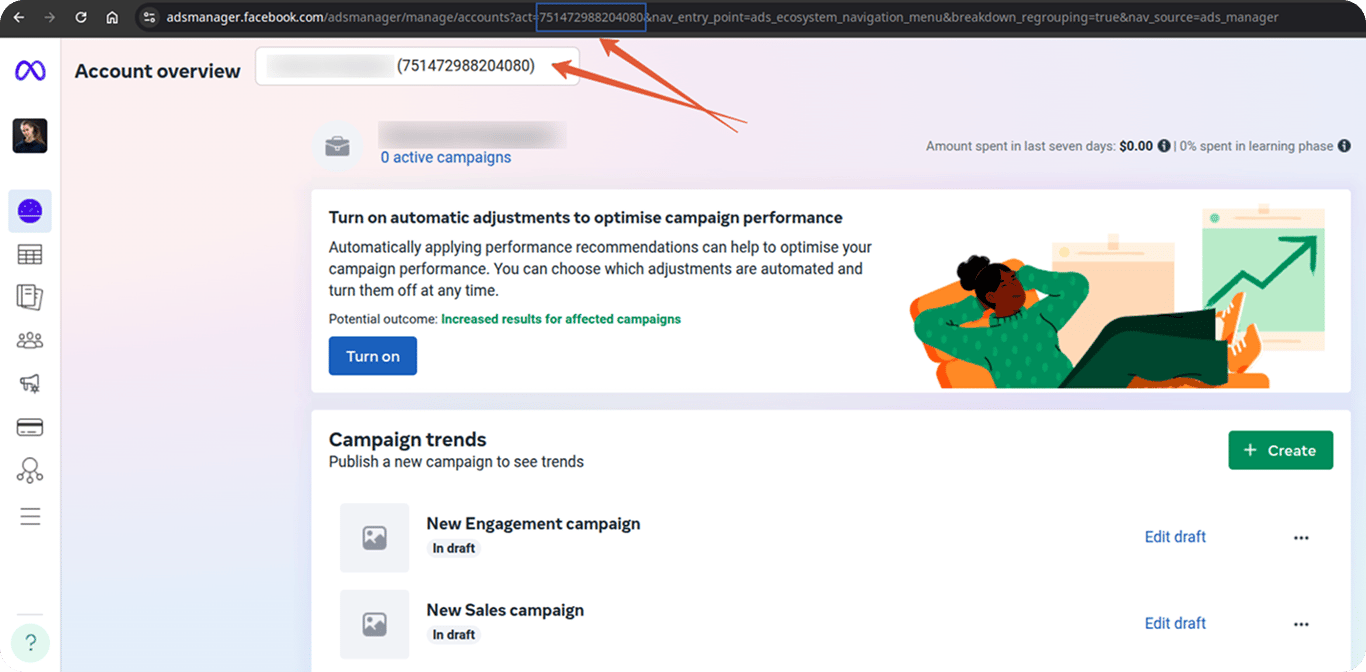
- Add Your Facebook Ads Account ID(s)
- Find your Account ID in Meta Ads Manager on the Account Overview page.
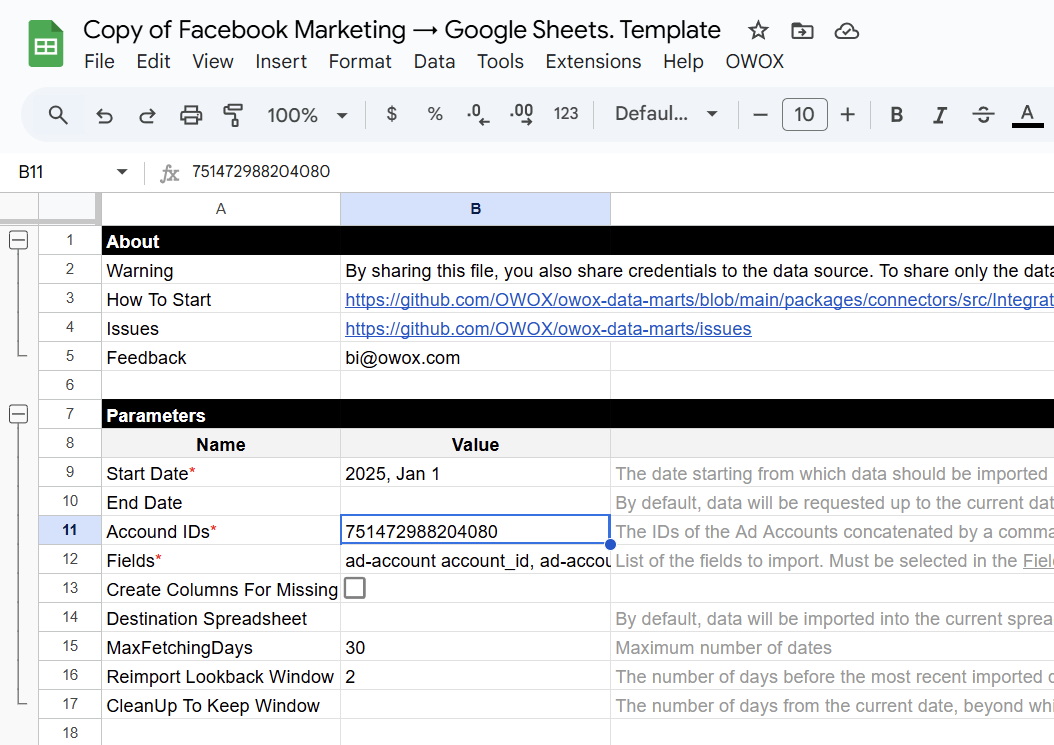
- Paste it into the corresponding field in the template.
Note: You can list multiple IDs, separated by commas, to pull data from several accounts.
- Select the Data Fields
- Navigate to the Fields tab.
- Check the boxes for the metrics, breakdowns, and dimensions you want to include.
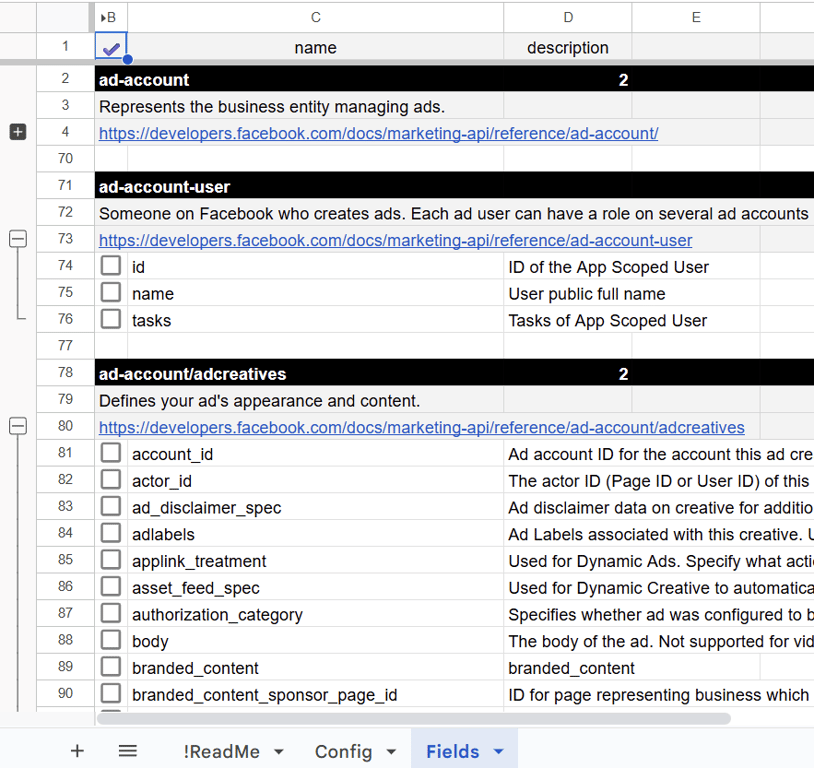
Note: Some Fields may be Preselected by default
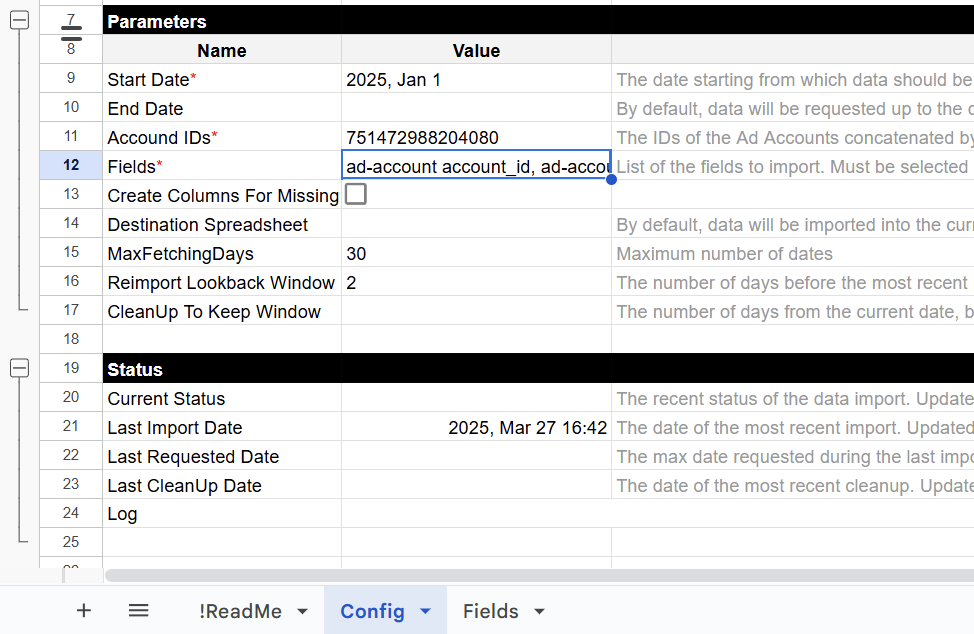
Further Specify the Fields with the Following Parameters:
- Destination Spreadsheet– Leave blank to load data into the currently open spreadsheet.
- ReimportLookbackWindow: Days to look back when reimporting data (default: 2)
- MaxFetchingDays: Max number of days to fetch per run (default: 31)
- Create Columns For Missing Data: Leave this blank to disable. When enabled, the connector will automatically create new columns in your sheet if the imported data contains fields not currently present.
- CleanUp To Keep Window: Specify the number of days to retain data.
Step 3: Get a Facebook Ads Access Token ( ~1 min)
You’ll need an access token to authorize your connector and pull data from Facebook Ads.
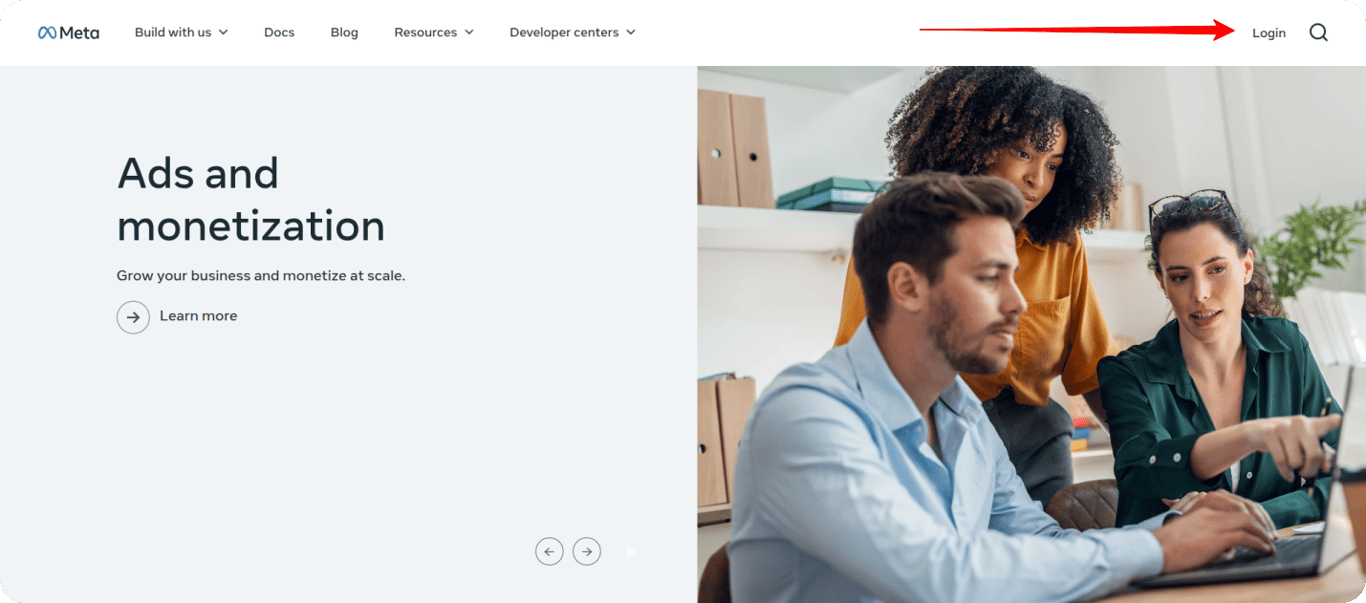
- Log In to Meta for Developers
- Visit the Meta for Developers site
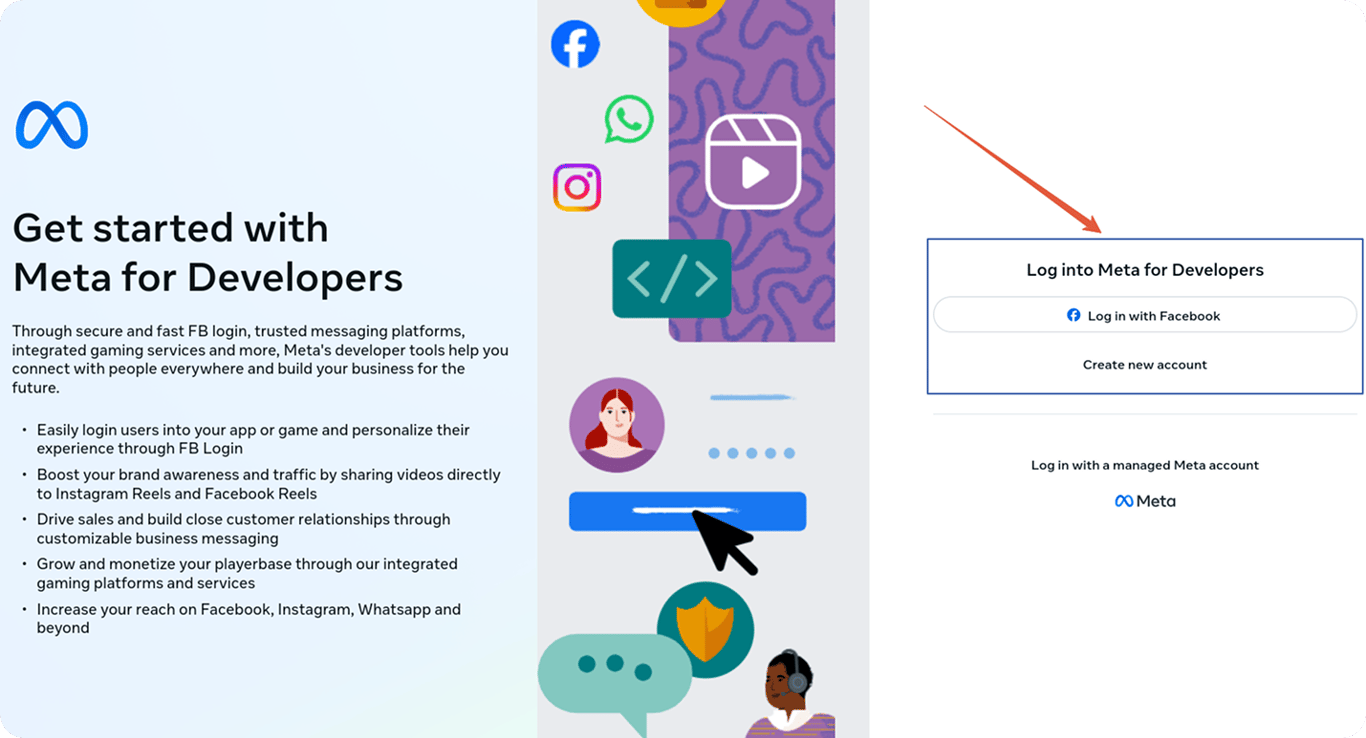
- Sign in using your Facebook account.
(Use the account that has access to your Meta Ads Business Manager.)
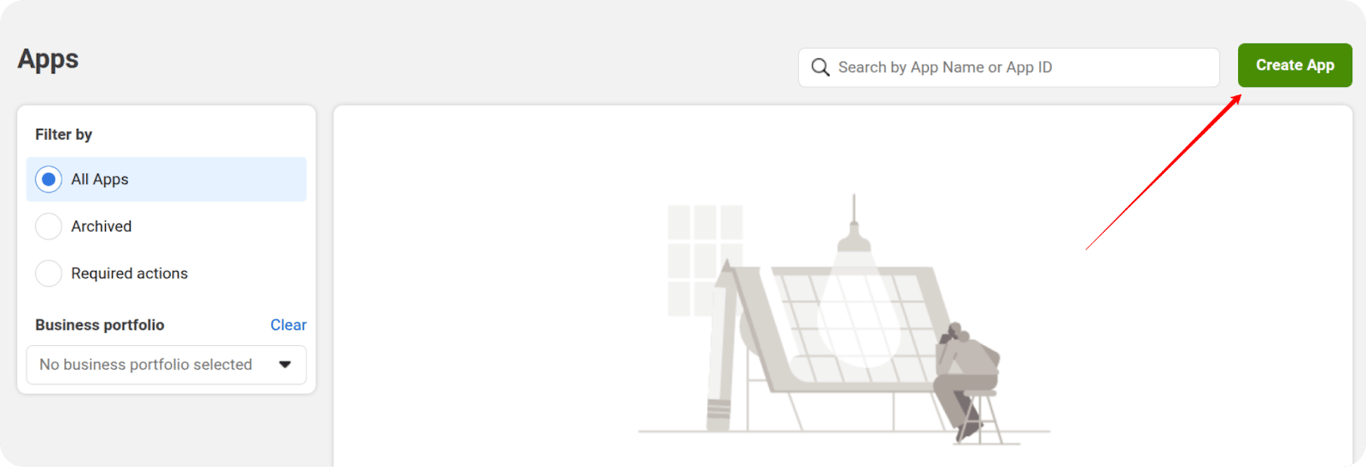
- Create a New App
- Click My Apps in the top-right menu, then Create App

- In the App Name field, enter a name of your choice.
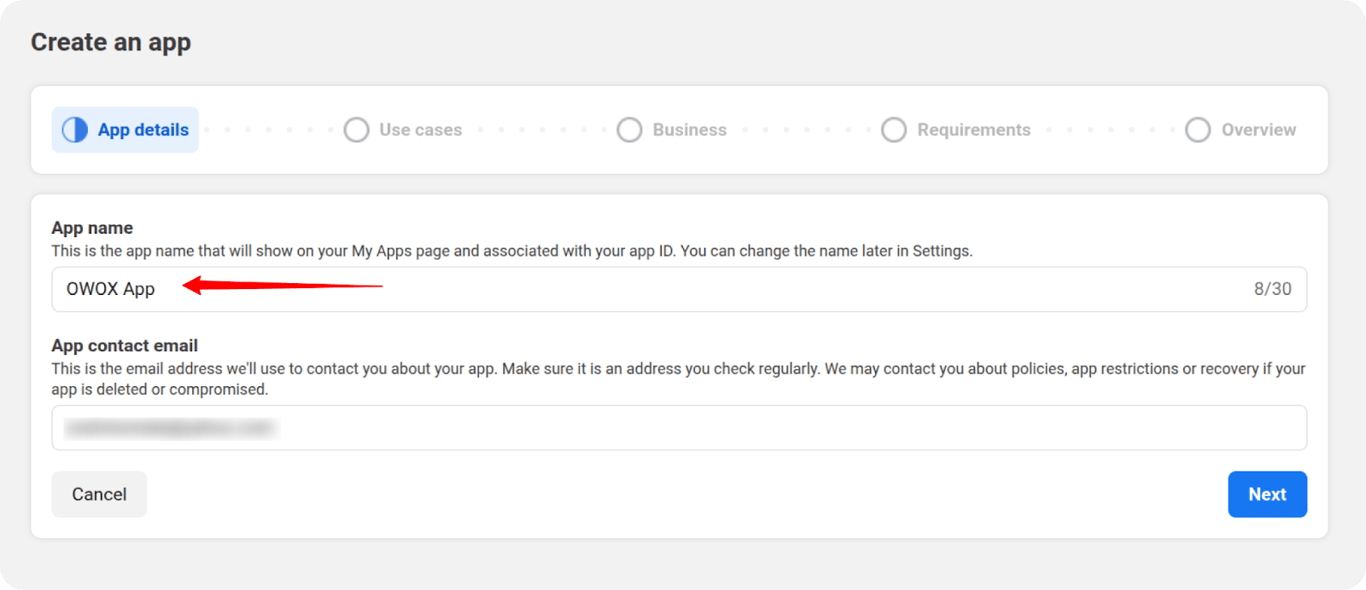
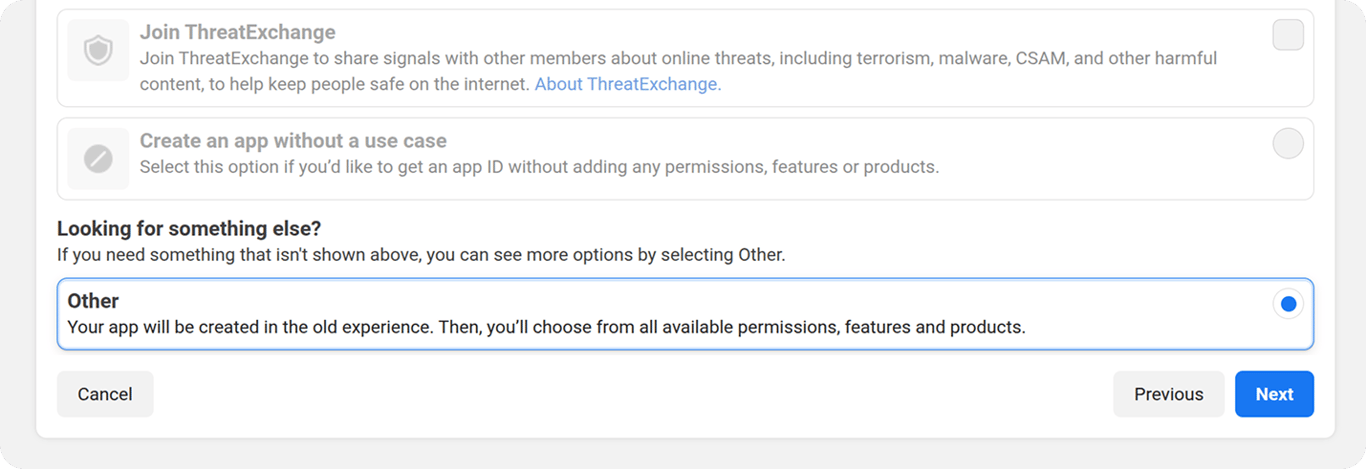
- For the use case, select Other
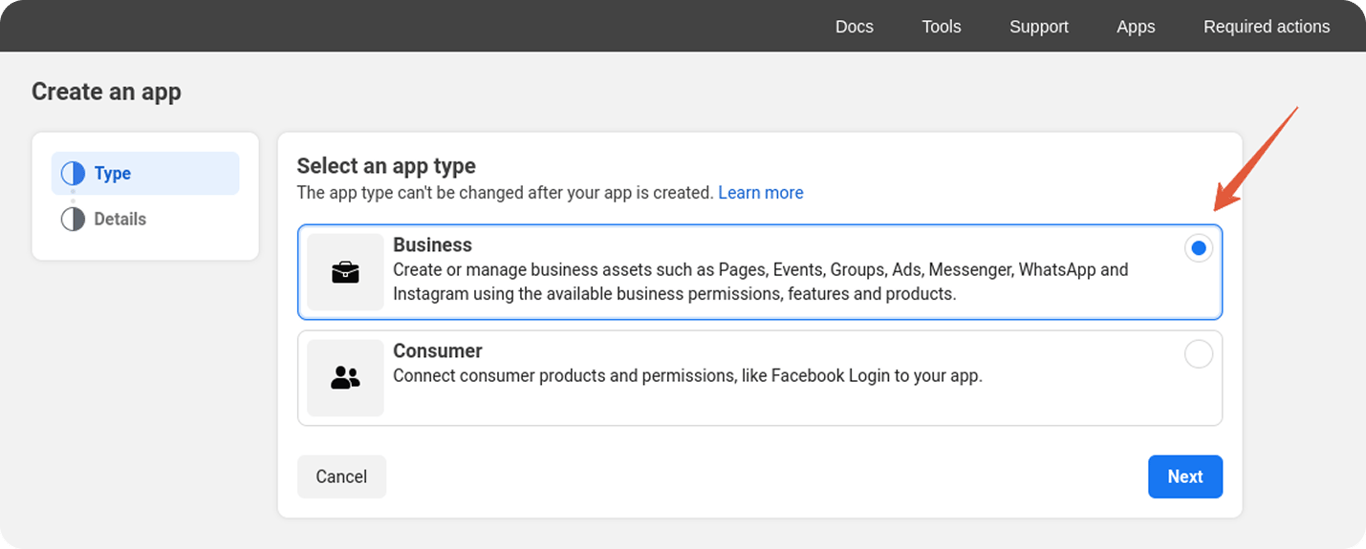
- Choose Business as the app type → click Next
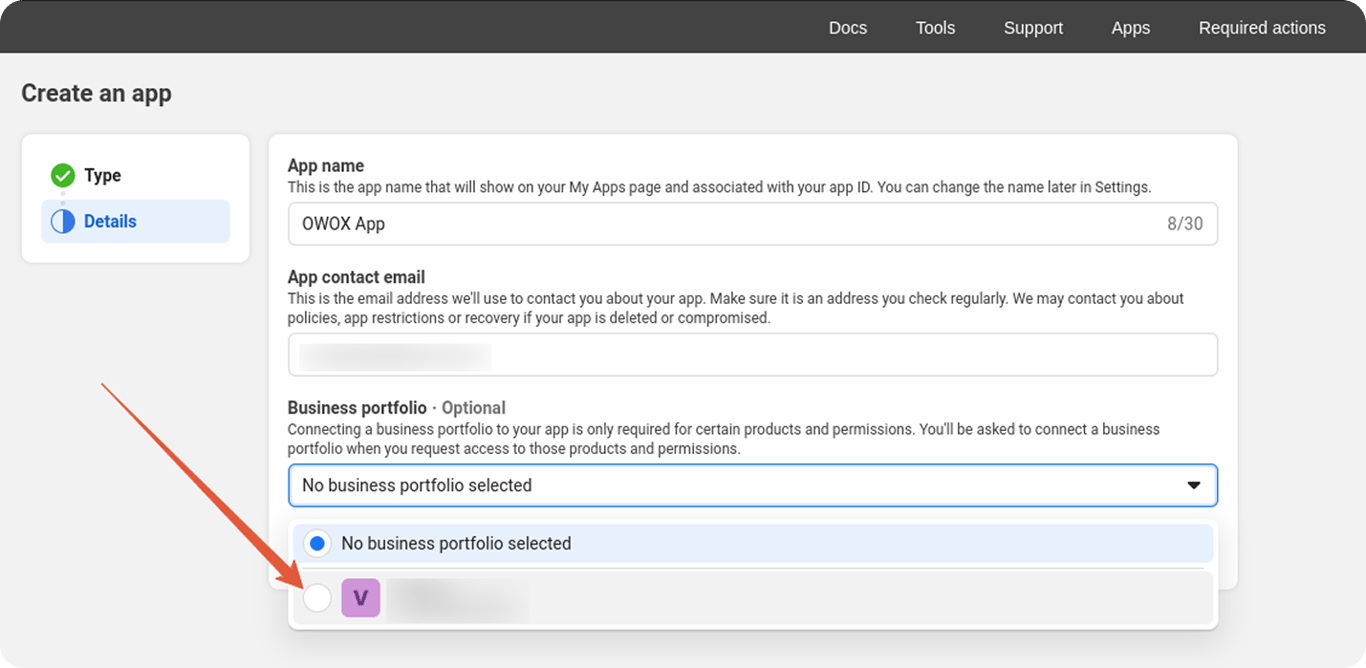
- Connect to a Business Portfolio
- Select the appropriate Business Portfolio
- Click Create App
- Start Business Verification
- Go to App Settings → Basic
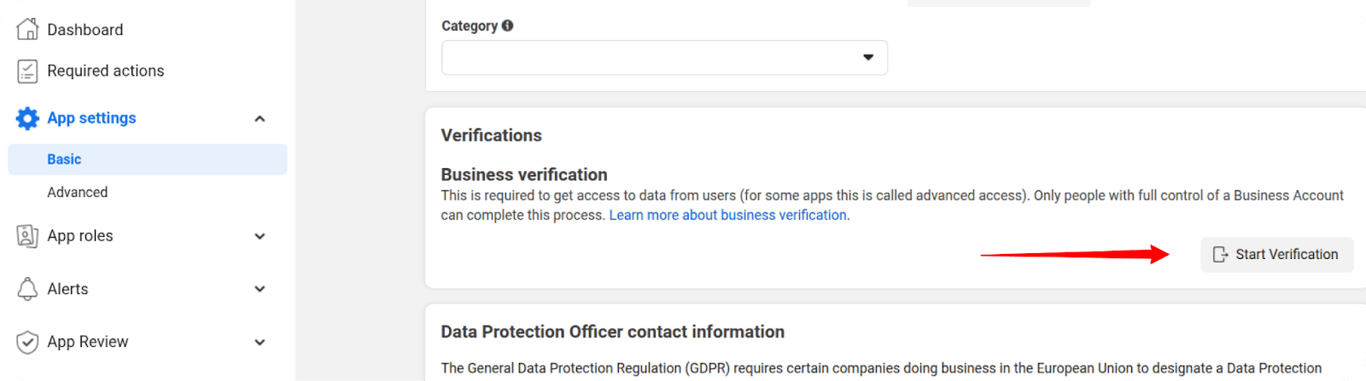
- If prompted, connect your app to your business portfolio.
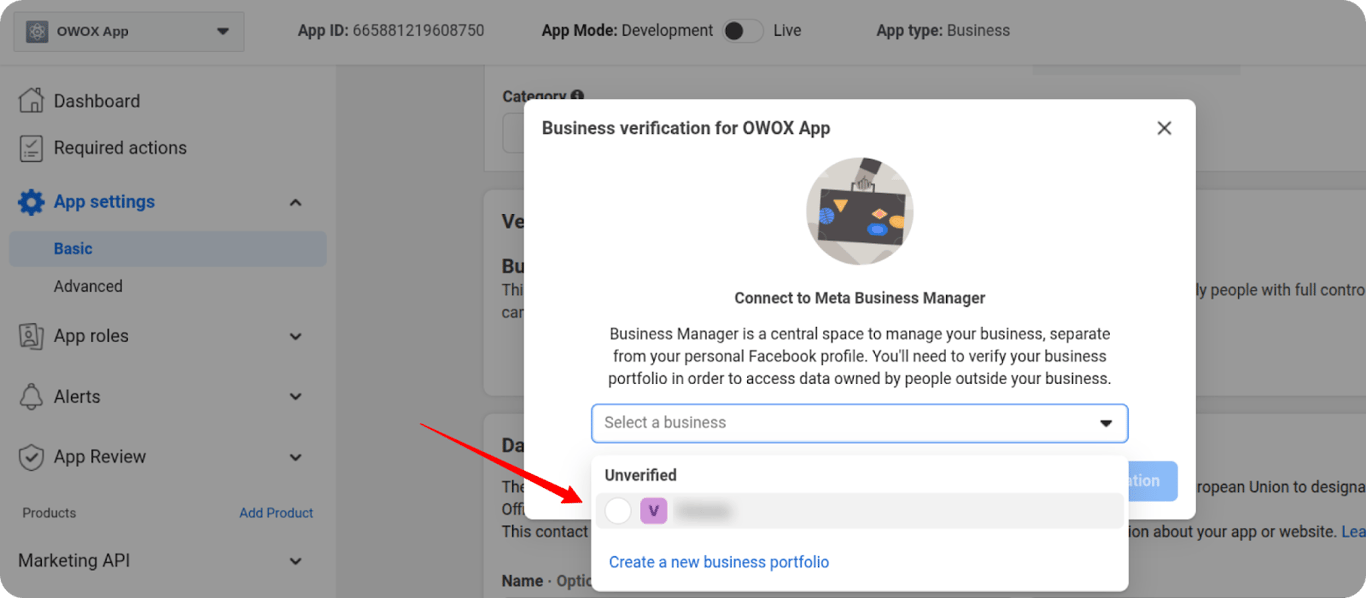
- Click Start Business Verification
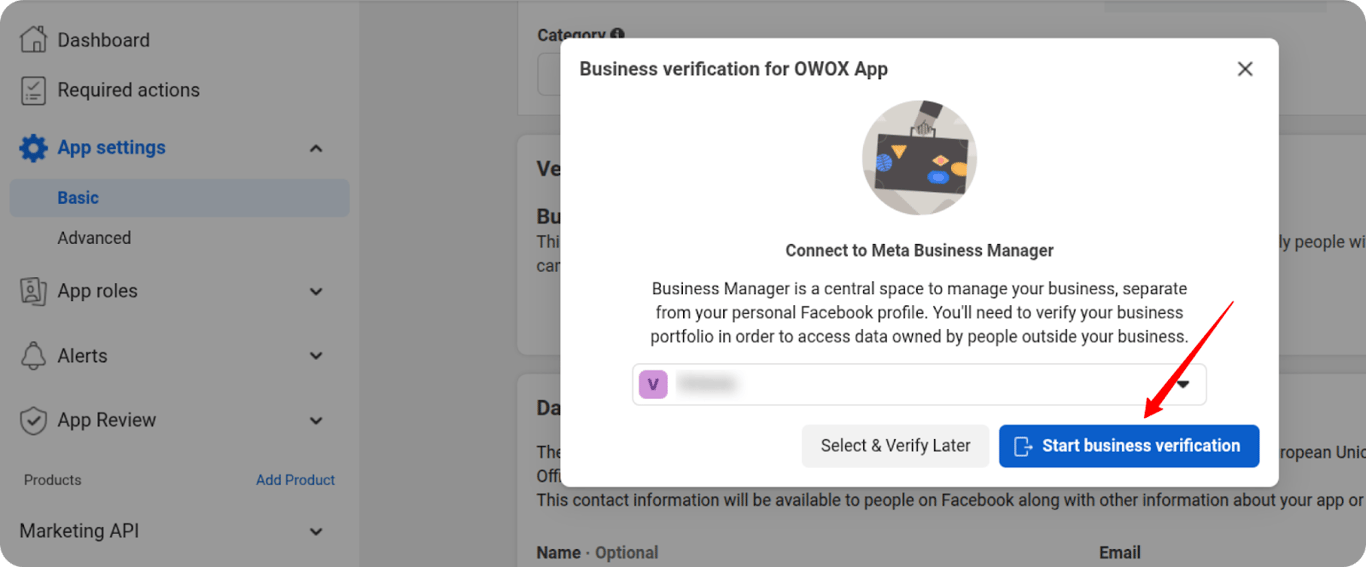
- Submit Verification Info
- Fill in the required fields with accurate contact and organizational information.
- Ensure your submission meets Meta’s requirements.
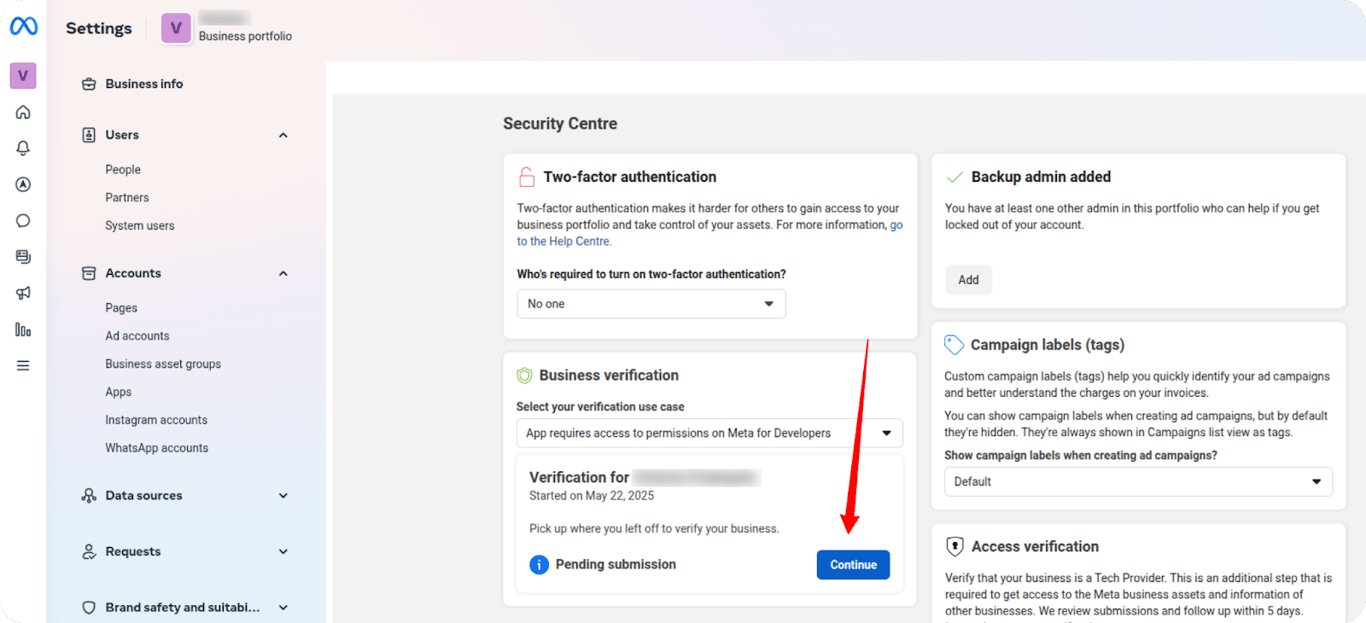
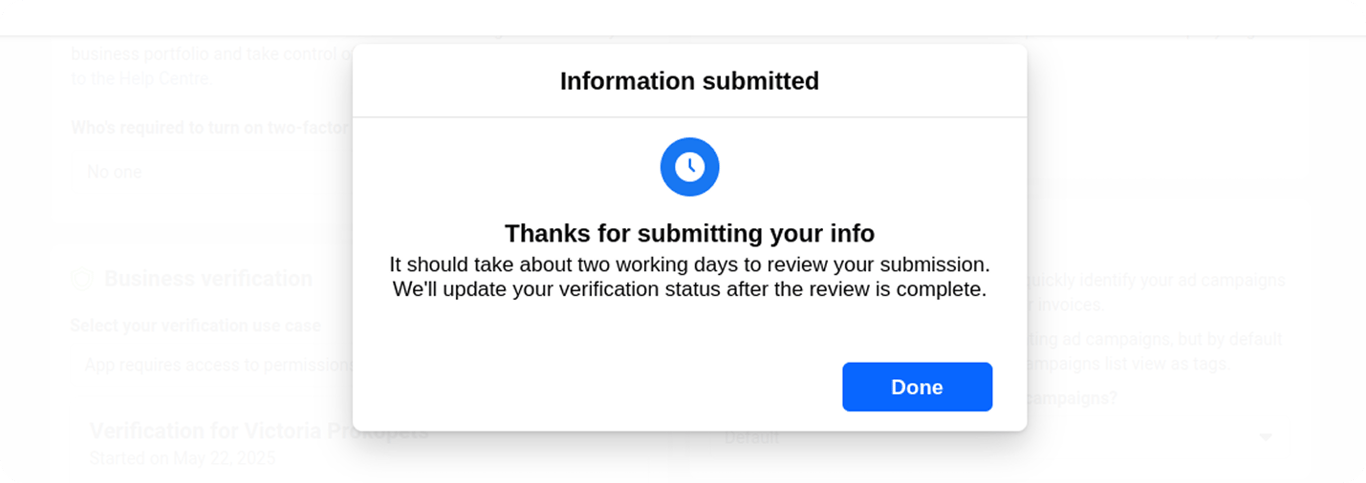
- Meta will review your submission within 2 business days.
- Set Up Marketing API
- After successful verification, return to your app dashboard.
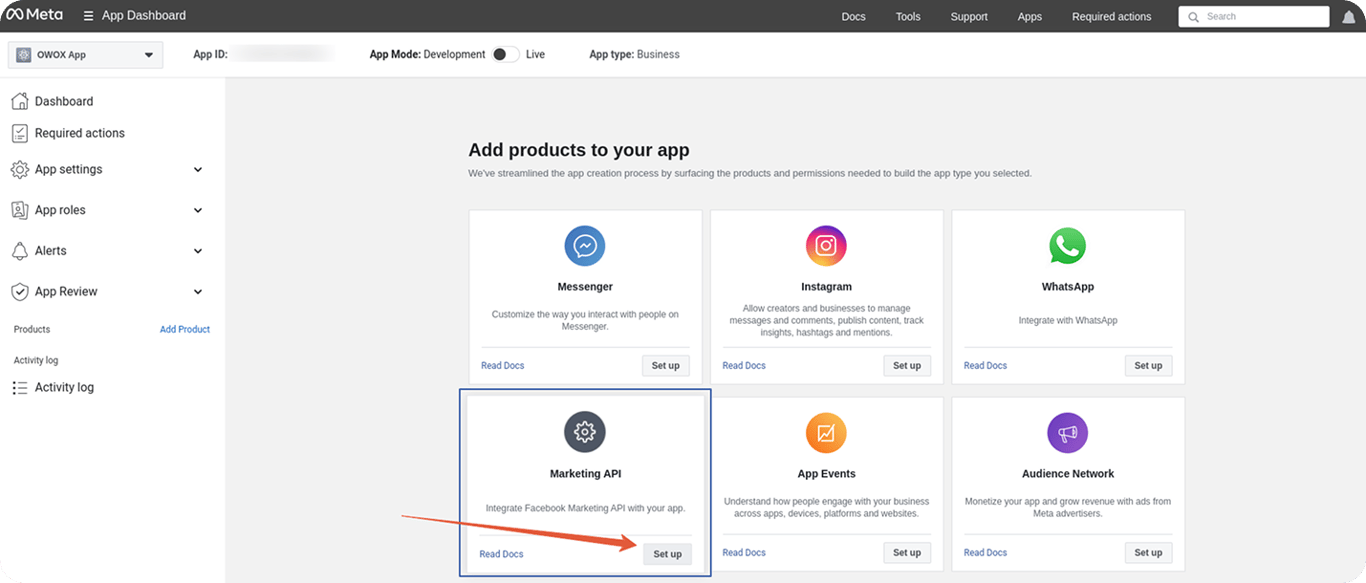
- Locate the Marketing API card and click Set Up
- Grant Required Permissions
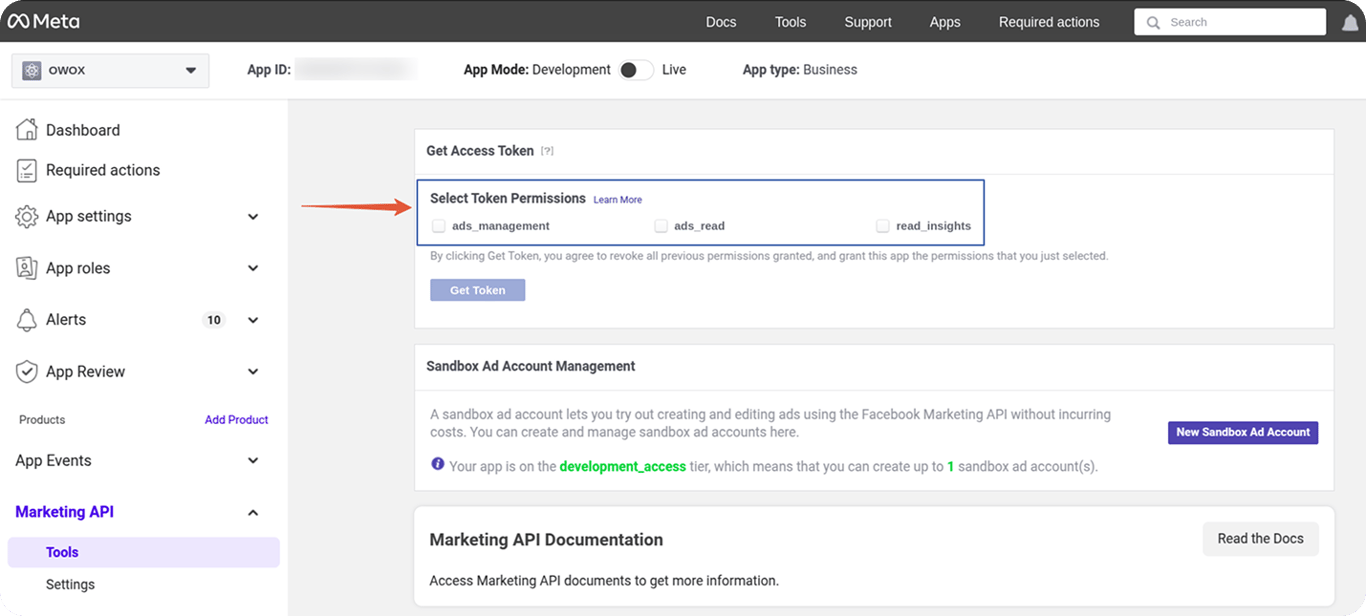
- In the Tools section, enable the following scopes:
- ads_read
- Read_insights
- In the Tools section, enable the following scopes:
- Generate and Save Token
- Click Get Token
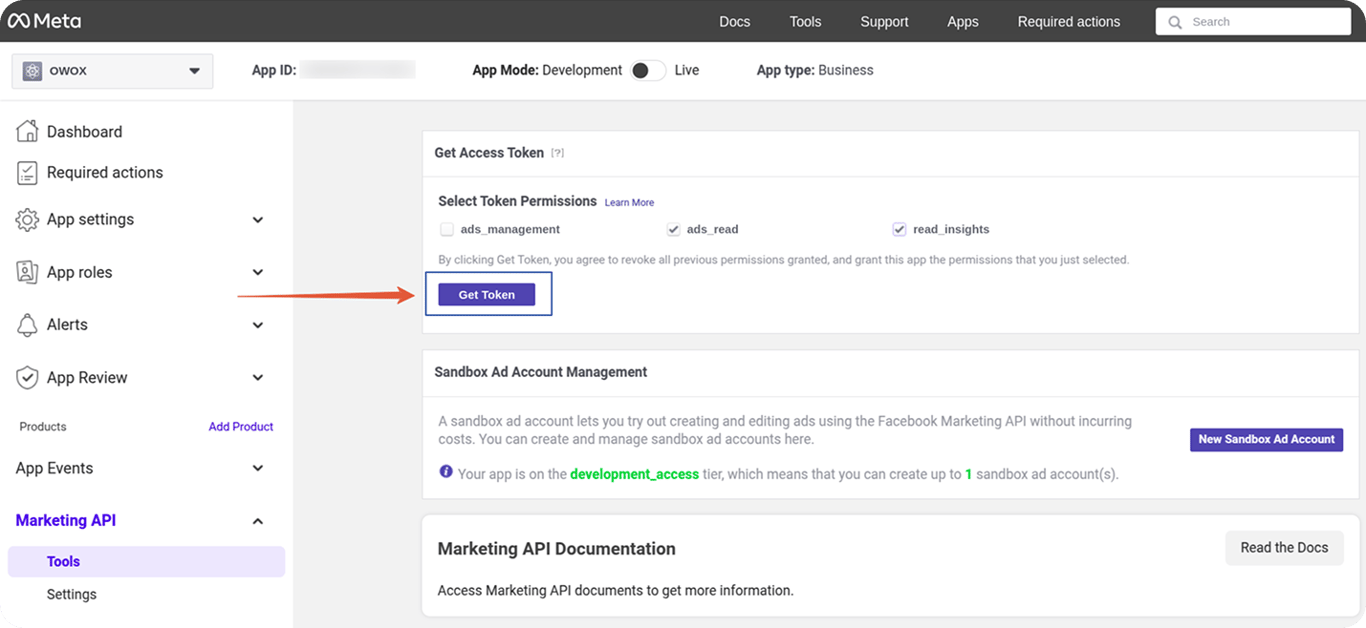
- Copy the generated access token and store it securely.
To regenerate, go to Marketing API → Tools → User Token section.
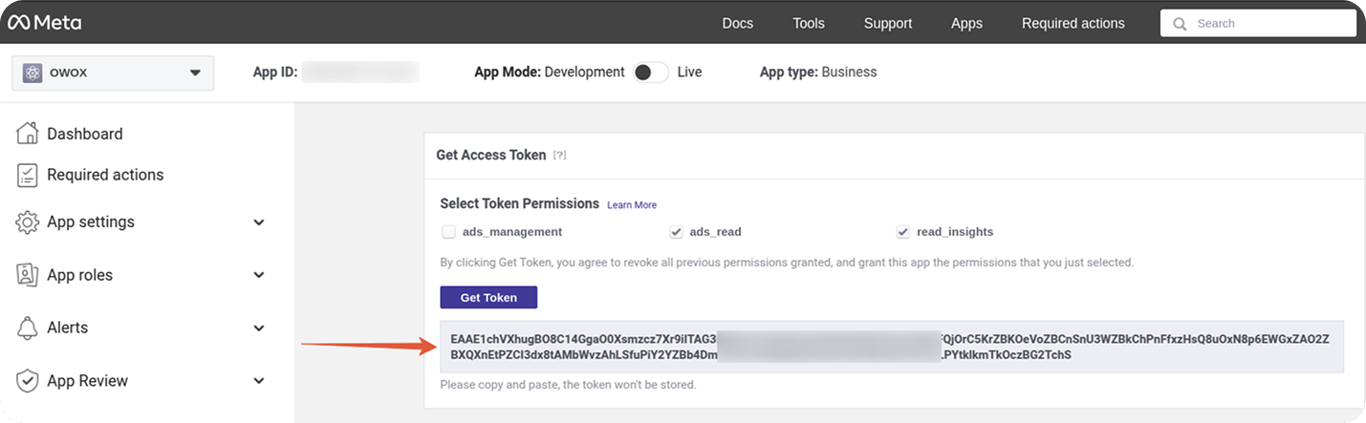
Once your token is ready, proceed to the next step to connect it to the Google Sheets template.
Step 4: Input Access Token into the Template ( ~10 seconds)
Connect your template to Facebook Ads using the access token.
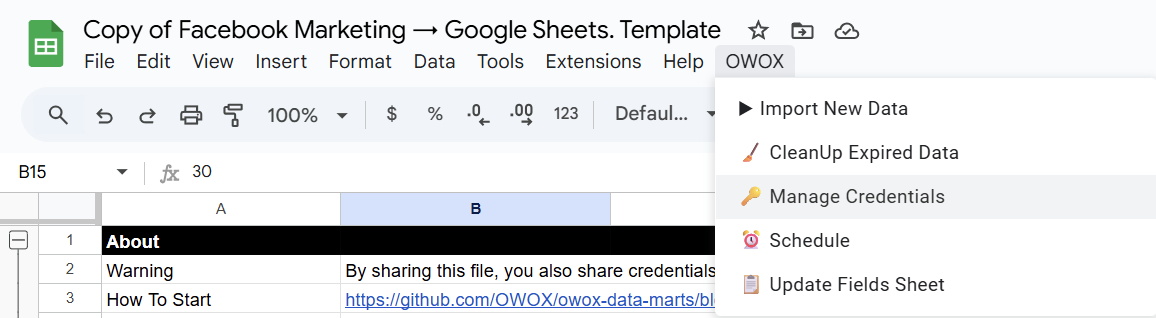
- Open the Credentials Menu
- Go to the spreadsheet’s top menu → OWOX → Manage credentials
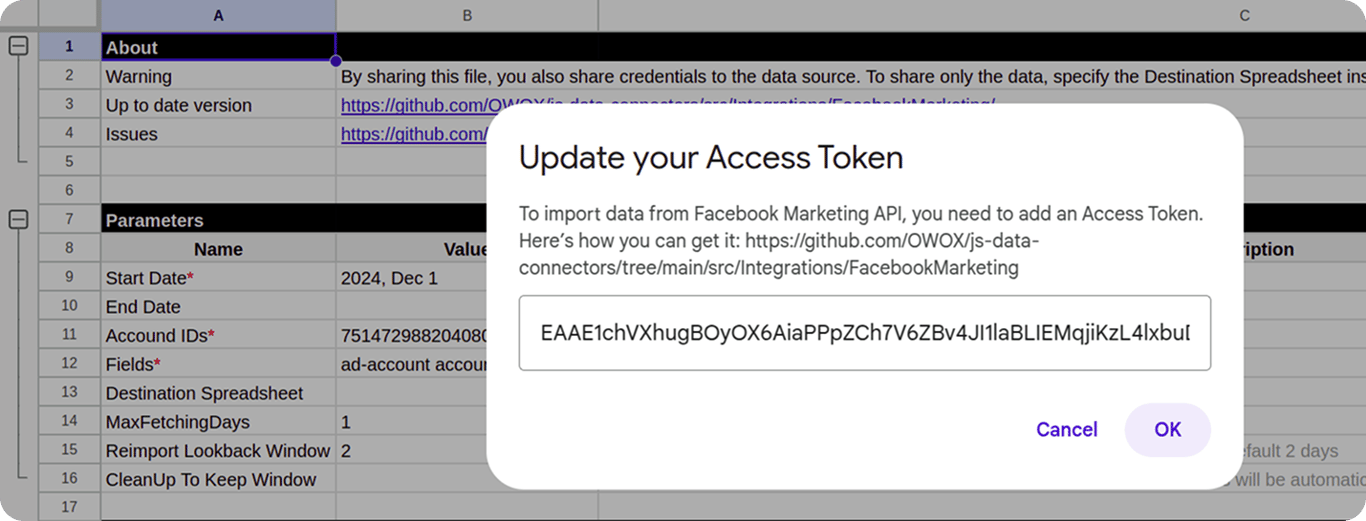
- Add Your Token
- Paste the token you generated.
- Click OK to save.
Step 5: Import Data into Google Sheets ( ~1 min)
Now it’s time to bring the data in.
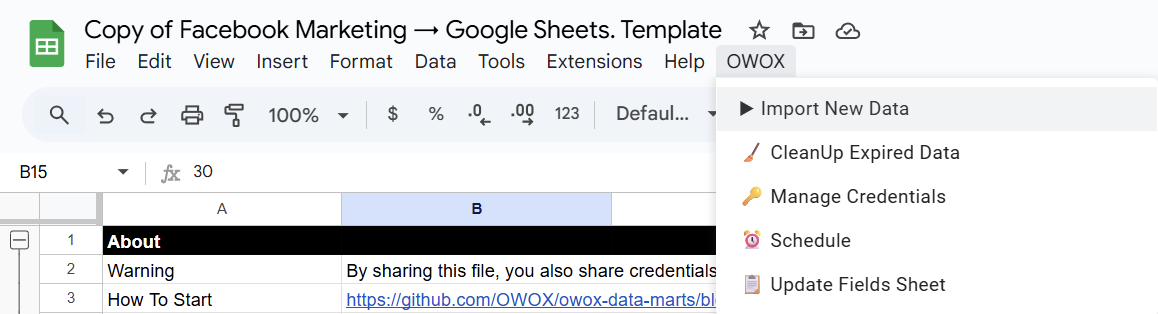
- Start the Import
- From the menu, click OWOX → Import New Data.
- Monitor the Logs
- The Logs sheet will show “Import is finished” once complete.
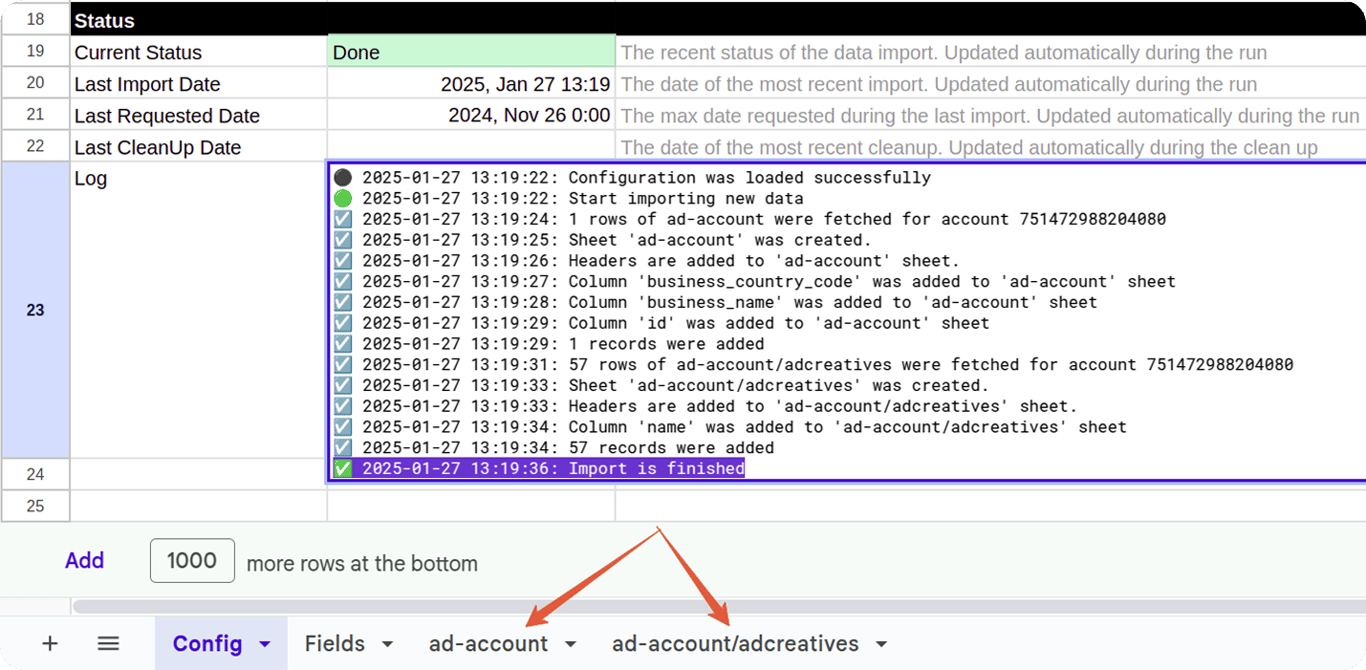
- Check Your Data
- Data will appear in new tabs labeled with the corresponding data types, like ad_account, ad_campaign, etc.
Real-Time Visualization with OWOX BigQuery Data Marts
Real-Time Visualization with OWOX BigQuery Data Marts
Getting your Facebook Ads data into Google Sheets is only the beginning. The real power comes when you start visualizing it – instantly.
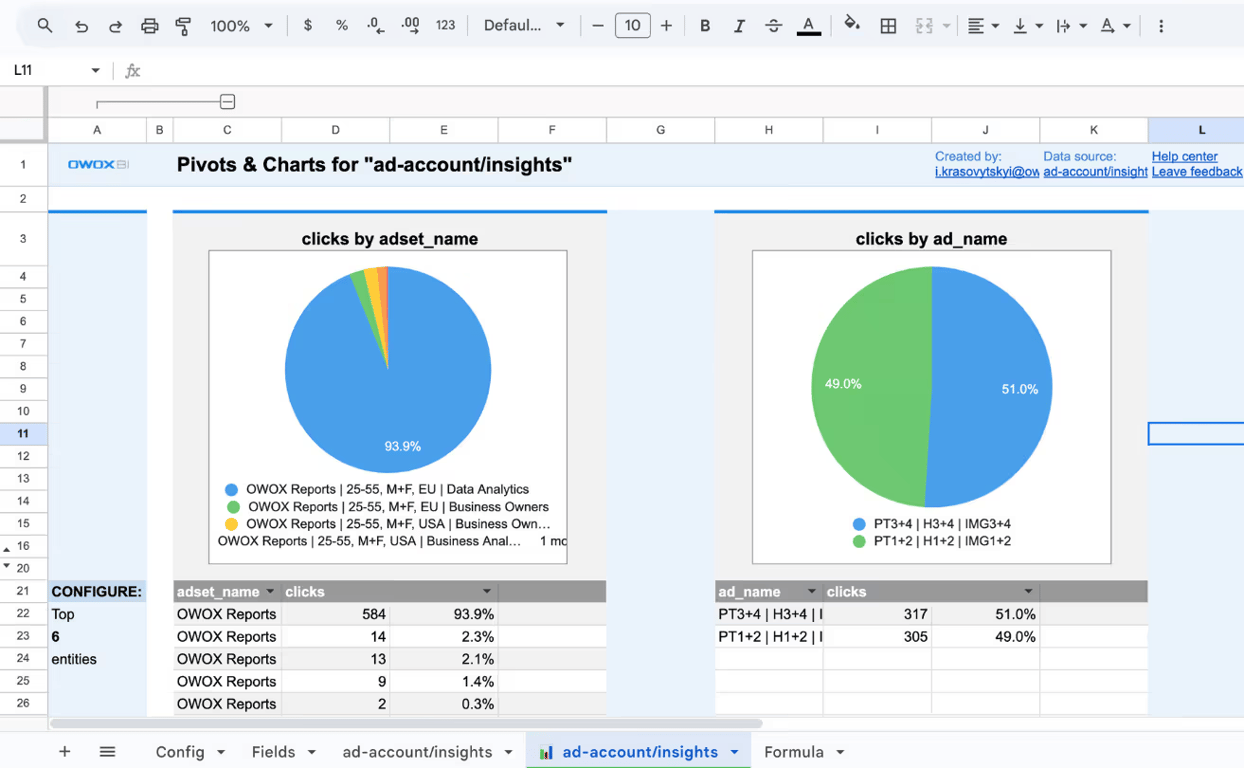
📊 With the OWOX BigQuery Data Marts, you can automatically generate pivot tables and charts tailored to your ad performance. No formulas, no formatting pain – just clean, visual insights that update as your data does.
Use OWOX AutoCharts to:
📊 Create stunning pivot tables and charts in 1 click
📈 Analyze Facebook Ads performance across time, creatives, or audiences
🔍 Spot outliers and optimization opportunities instantly
🔁 Refresh and update visuals in real time as new data arrives
Whether you’re monitoring campaign-level ROAS, comparing ad sets, or identifying top creatives, OWOX AutoCharts has your back.
What’s Next?
What’s Next?
This connector represents our ongoing effort to make data ownership simple, transparent, and accessible for everyone.
Here are more resources to explore:
🔗 More free connectors - including Microsoft Ads and LinkedIn Ads Connector for Google Sheets, and many more platforms.
🎥 Step-by-step video tutorials - so you can follow along and set everything up with ease.
📊 Prebuilt dashboard templates - designed to help you get actionable insights instantly.
Check out our GitHub repo, leave us a ⭐ star, and let’s build better tools together.
Facebook Ads Connector to Google Sheets
{ “@context”: “https://schema.org”, “@type”: “Blog”, “name”: “Free Facebook Ads to Google Sheets Connector by OWOX: Own Your Data, Maximize Your Insights”, “url”: “www.owox.com/blog/articles/free-facebook-ads-connector-to-google-sheets”, “about”: [ { “@type”: “Thing”, “name”: “Facebook Ads”, “sameAs”: “https://en.wikipedia.org/wiki/Facebook\_Ads” }, { “@type”: “Thing”, “name”: “Google Sheets”, “sameAs”: “https://en.wikipedia.org/wiki/Google\_Sheets” }, { “@type”: “Thing”, “name”: “Marketing analytics”, “sameAs”: “https://en.wikipedia.org/wiki/Marketing\_analytics” }, { “@type”: “Thing”, “name”: “Data integration”, “sameAs”: “https://en.wikipedia.org/wiki/Data\_integration” }, { “@type”: “Thing”, “name”: “Open-source software”, “sameAs”: “https://en.wikipedia.org/wiki/Open-source\_software” } ], “mentions”: [ { “@type”: “Thing”, “name”: “ETL”, “sameAs”: “https://en.wikipedia.org/wiki/Extract,\_transform,\_load” }, { “@type”: “Thing”, “name”: “Access token”, “sameAs”: “https://en.wikipedia.org/wiki/OAuth” }, { “@type”: “Thing”, “name”: “Google Apps Script”, “sameAs”: “https://en.wikipedia.org/wiki/Google\_Apps\_Script” }, { “@type”: “Thing”, “name”: “Campaign performance”, “sameAs”: “https://en.wikipedia.org/wiki/Campaign\_management” }, { “@type”: “Thing”, “name”: “Marketing API”, “sameAs”: “https://developers.facebook.com/docs/marketing-apis” } ] }
{ “@context”: “https://schema.org”, “@type”: “FAQPage”, “mainEntity”: [ { “@type”: “Question”, “name”: “Is the Facebook Ads to Google Sheets connector really free?”, “acceptedAnswer”: { “@type”: “Answer”, “text”: “Yes, it’s completely free and open-source. You can use, modify, and distribute it without any fees or limitations, no upgrades, no paywalls, and no hidden quotas.” } }, { “@type”: “Question”, “name”: “Do I need technical skills to set this up?”, “acceptedAnswer”: { “@type”: “Answer”, “text”: “No. The setup process is fully no-code and uses a ready-made Google Sheets template. Simply follow the step-by-step instructions to configure and start importing your data.” } }, { “@type”: “Question”, “name”: “What types of Facebook Ads data can I import?”, “acceptedAnswer”: { “@type”: “Answer”, “text”: “You can pull in data from ad accounts, campaigns, ad sets, and individual ads. Metrics such as impressions, clicks, conversions, and spend, as well as breakdowns by age, gender, and placement, are all supported.” } }, { “@type”: “Question”, “name”: “How often can I update my data?”, “acceptedAnswer”: { “@type”: “Answer”, “text”: “You can run data imports manually or set up scheduled refreshes using the built-in menu. This ensures your reports are always up to date without repeated manual work.” } }, { “@type”: “Question”, “name”: “Is my Facebook access token secure in this setup?”, “acceptedAnswer”: { “@type”: “Answer”, “text”: “Yes. Your access token is stored only within your Google Sheets environment and used locally by the Apps Script. It’s never shared externally, just keep your token private and secure.” } }, { “@type”: “Question”, “name”: “Can I build visual dashboards from this data in Sheets?”, “acceptedAnswer”: { “@type”: “Answer”, “text”: “Absolutely. Use the OWOX Reports extension to create pivot tables and charts instantly. You can visualize campaign results, compare ad sets, and track KPIs in real-time, with no coding or Looker Studio required.” } } ] }
{ “@context”: “https://schema.org”, “@type”: “VideoObject”, “name”: “How to Collect Facebook Ads Data into Google Sheets Connector – OWOX”, “description”: “Learn how to collect Facebook Ads data directly into Google Sheets using a free, open-source connector by OWOX. Automate your reporting and save time with effortless data sync.”, “uploadDate”: “2025-06-20T00:00:00Z”, “duration”: “PT13M0S”, “embedUrl”: “https://www.youtube.com/embed/sndwLZaMfOA”, “contentUrl”: “https://www.youtube.com/watch?v=sndwLZaMfOA”, “thumbnailUrl”: “https://i.ytimg.com/vi/sndwLZaMfOA/maxresdefault.jpg”, “regionsAllowed”: “Worldwide”, “isAccessibleForFree”: true }
FAQ
Can I export Facebook Ads data to Excel instead of Google Sheets?
Google Sheets is the primary spreadsheet destination today. However, because your Facebook Ads data lives in a data warehouse, you can query it from any tool that connects to your warehouse — including Excel via ODBC/JDBC, Looker Studio, Power BI, or Tableau. You can also download any Google Sheets report as an .xlsx file.
What data warehouse do I need to connect Facebook Ads to Google Sheets?
OWOX Data Marts supports BigQuery, Snowflake, Databricks, Amazon Athena, and Amazon Redshift. If you do not have a warehouse yet, a free-tier Google BigQuery project is the fastest way to start — it provides 10 GB of free storage and 1 TB of free queries per month, which is more than enough for most ad-data workloads.
Will my formulas and charts break when the data refreshes?
No. The Google Sheets destination in OWOX preserves your existing formulas, auto-fills formulas down to new rows, keeps custom column order intact, and cleans up stale rows that no longer appear in the source data. Your SUMIF, pivot tables, and charts stay intact after every scheduled refresh.
Do I need SQL or coding skills to set up the Facebook Ads Google Sheets integration?
No. The connector-based Data Mart wizard handles warehouse loading, schema creation, and destination setup through a point-and-click interface. You select Facebook Ads as the source, pick your warehouse, choose Google Sheets as the destination, and set a schedule — all without writing a single line of SQL or code.
Can I combine Facebook Ads data with Google Ads or other platforms in one spreadsheet?
Absolutely. OWOX supports Joinable Data Marts — a lightweight semantic layer that lets you join Facebook Ads, Google Ads, LinkedIn Ads, TikTok Ads, and other sources inside your data warehouse before delivering the blended dataset to a single Google Sheets report. No CSV stitching or VLOOKUP chains required.
How often can I refresh Facebook Ads data in Google Sheets?
You control the refresh cadence with Report Triggers. Choose daily, weekly, or monthly schedules, or set a custom interval. Each trigger fires automatically, pulls the latest Facebook Ads metrics from your data warehouse, and pushes them into your Google Sheets destination — no manual re-runs needed.
Is the OWOX Facebook Ads to Google Sheets connector really free?
Yes. OWOX Data Marts is an open-source project, and the Facebook Ads connector is included at no extra cost. There are no per-connector fees, no row limits tied to a paid tier, and no trial that expires. You only pay for your own data-warehouse compute and storage, which most teams already budget for. A free-tier BigQuery project is usually enough to get started.
Topics
About the author

Related articlesSee all articles →