Connector


Visualize Facebook Ads Data in Looker Studio
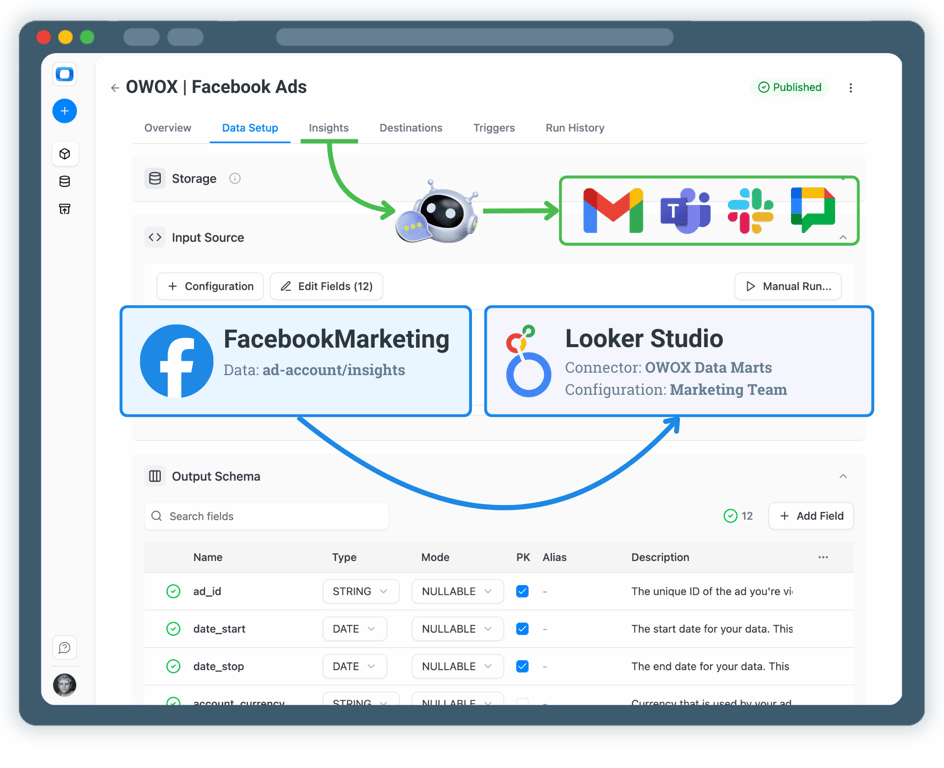
Use Looker Studio as a reporting destination for Facebook Ads data collected with OWOX Data Marts. Collect Facebook Ads Data into any data warehouse, then reuse it in Looker Studio (or Google Sheets) for reporting. Or enable AI Insights and deliver ads performance & alerts into chat tools or by email.
The analytics system teams actually use
Marketplace users
175K+
teams running OWOX from the Google Workspace Marketplace
G2 rating
4.9
296 verified reviews on G2
Connector downloads
156K+
open-source connector installs via npm
GitHub stars
231
the platform is open source — star it, fork it, self-host it
S01 · Step 1
Step 1: Create a Facebook Ads Data Mart
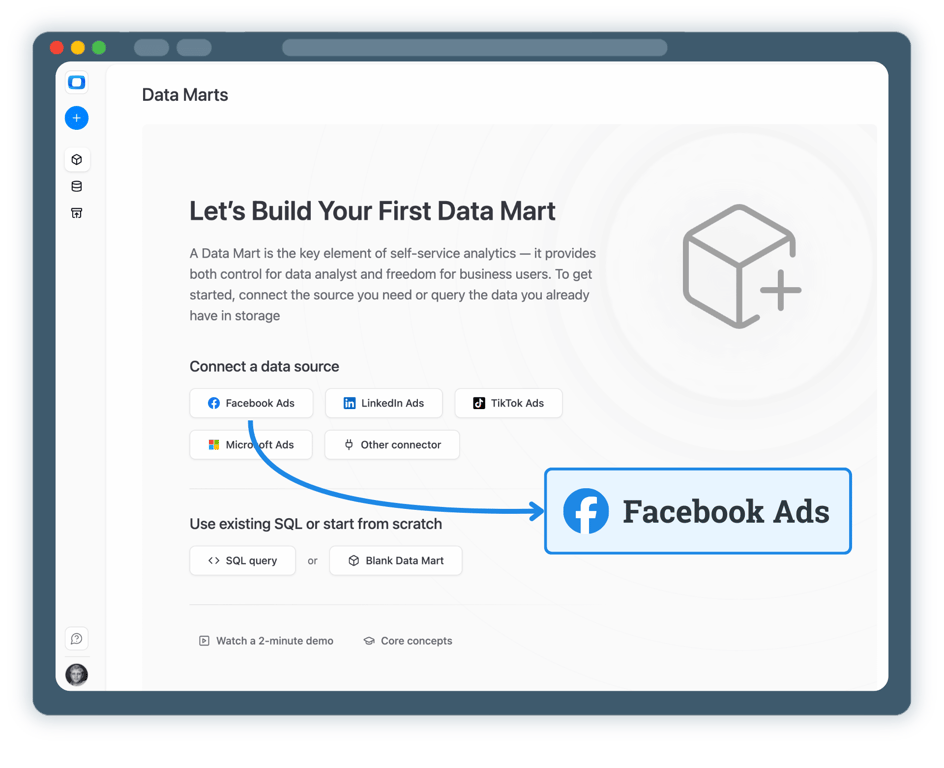
Start by creating a new Facebook Ads Data Mart and choose Connector as the definition type.
- Select Facebook Ads as the data source
- Specify the ad account that you want to collect data from
- Authorize access to your Facebook Ads account
S02 · Step 2
Step 2: Select a Data Storage
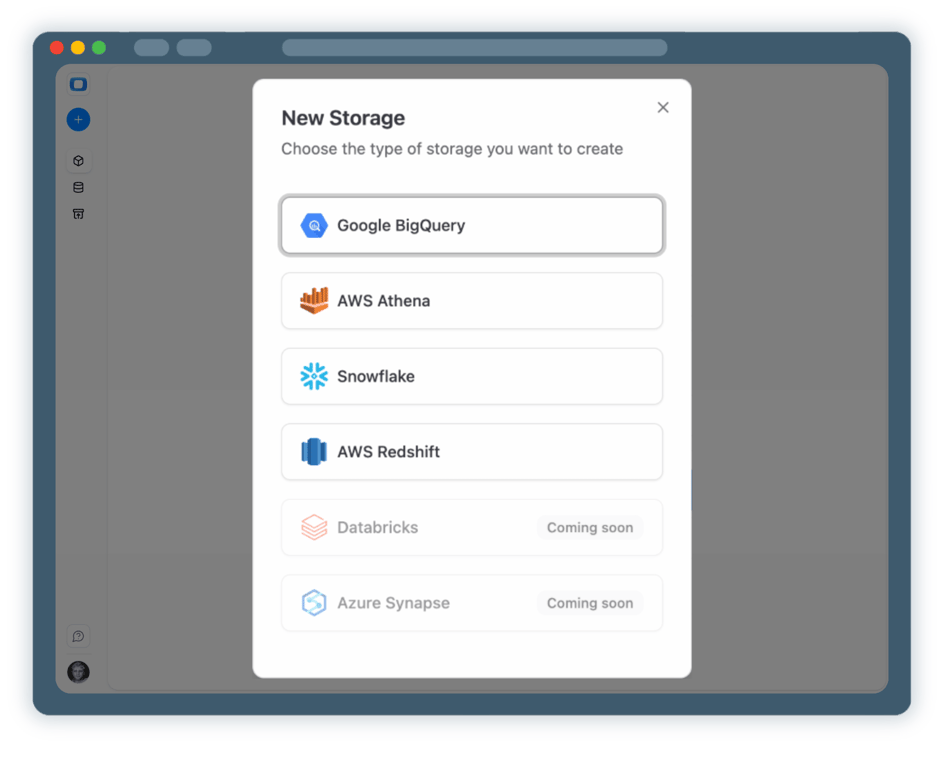
All data should have it’s home. You need to connect a data storage where your Facebook Ads data will be stored & processed. This is necessary so you connect trusted data to Looker Studio.
- Choose a supported data warehouse such as BigQuery, Snowflake or Redshift.
- Store raw Facebook Ads data in one central place so you can blend them later on
- Keep full ownership and control over your data
S03 · Step 3
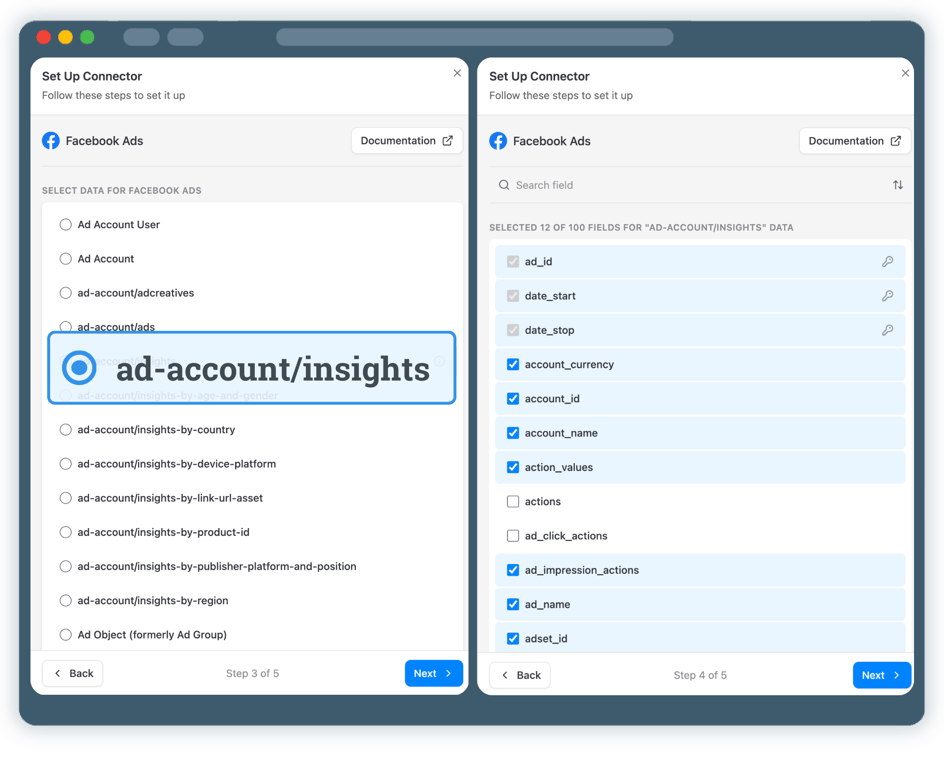
Step 3: Select Facebook Ads API Endpoint & Fields
Choose exactly which Facebook Ads data should be collected.
- Select the appropriate API endpoint (for example, ad_account_insights)
- Choose metrics such as spend, impressions, clicks, and conversions
- Define the dataset and table where data will be stored
S04 · Step 4
Step 4: Create Facebook Ads Report in Looker Studio
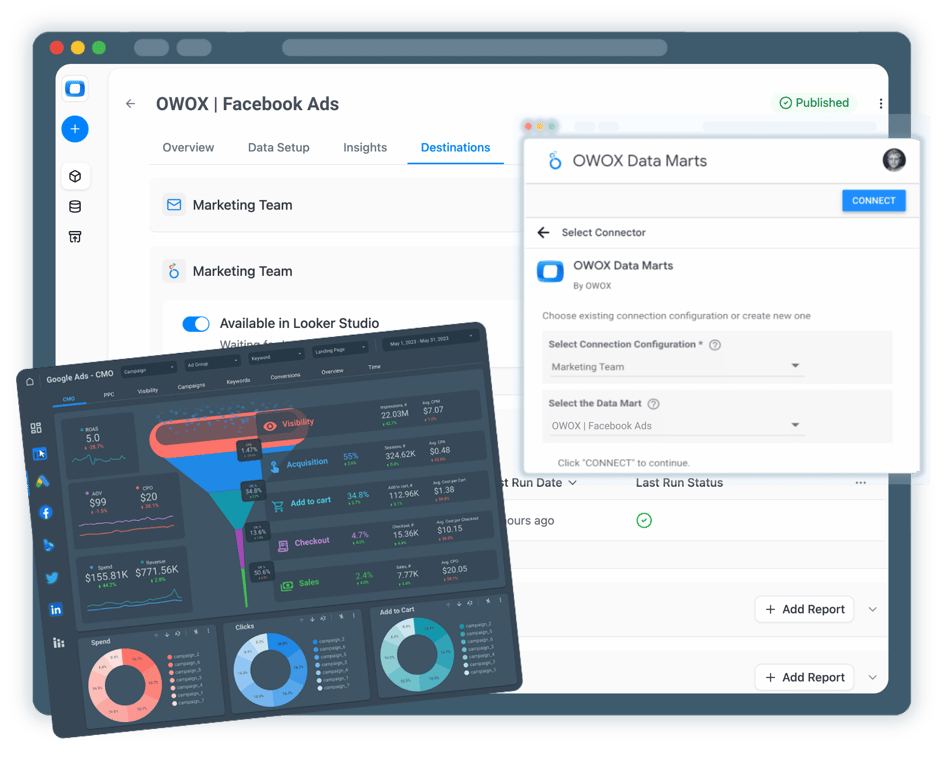
Now it’s time to enable your Facebook Ads data in Looker Studio
- Add Looker Studio as a Destination & paste the JSON into Looker Studio
- Then just tik the box in the Destinations section of a data mart
- From now on, your Facebook Ads Data Mart is available from Looker Studio as a configuration
S05 · Step 5
Step 5: Get more from your Facebook Ads Data
Your Facebook Ads data is now available for analysis in Looker Studio. But why stop at just this? You can reuse the same Facebook Ads Data Mart to:
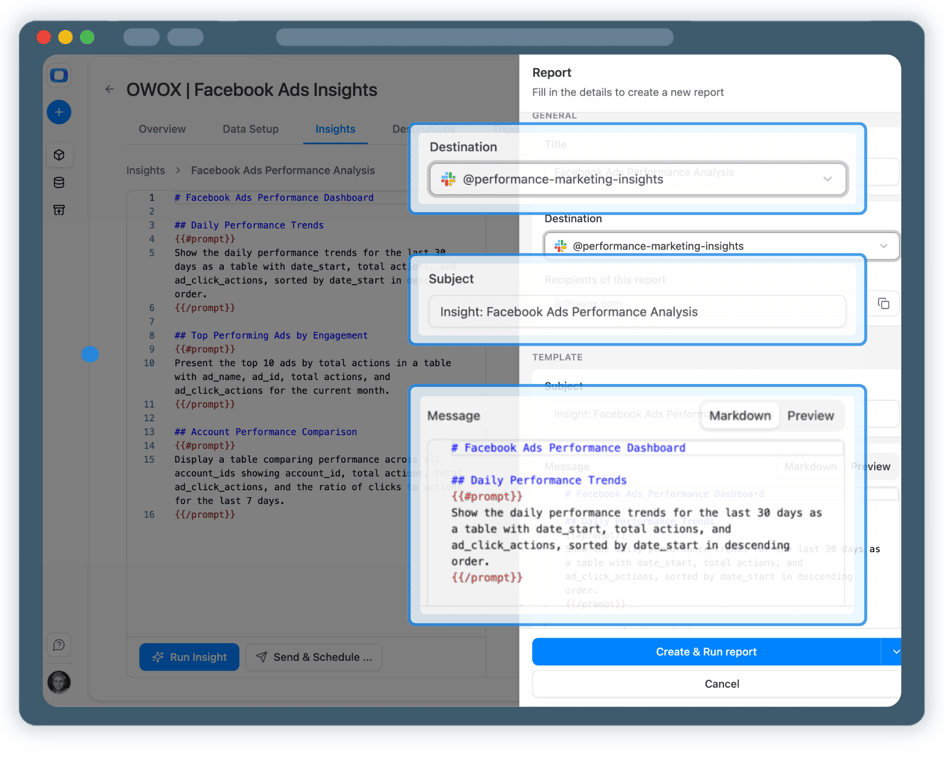
- Enable Facebook Ads AI Insights delivered on a schedule to Slack, MS Teams or by Email
- Just go to Insights tab, use our smart prompt, customize it or start from scratch
- Blend Facebook Ads data with GA4, CRM, or other ad platforms
Related connectors


What users are saying
Every claim has a receipt.
Real things real customers said — each quote pinned to a specific claim, straight from the quotes database.
 Nodari RizunFounder & CEO, Pürblack®
“AI, by the nature of the models, will hallucinate. And because of that, you need something which will create guardrails to ensure that there are no hallucinations, that you can trust your data.”
 Mark SimmonsCMO, Pürblack®
“We had six or seven different channels and no single source of truth — it was almost impossible, a lot of guesswork.”
Nodari RizunFounder & CEO, Pürblack®“We regained time. And time is the one resource that never comes back.”